MiniMax H3 AI Video Generator
Create videos with native sound from text or an image. Use MiniMax H3 for individual scenes, or build music videos and animated stories with OiiOii’s agents, character assets, and editable storyboards.
MiniMax H3 Text to Video
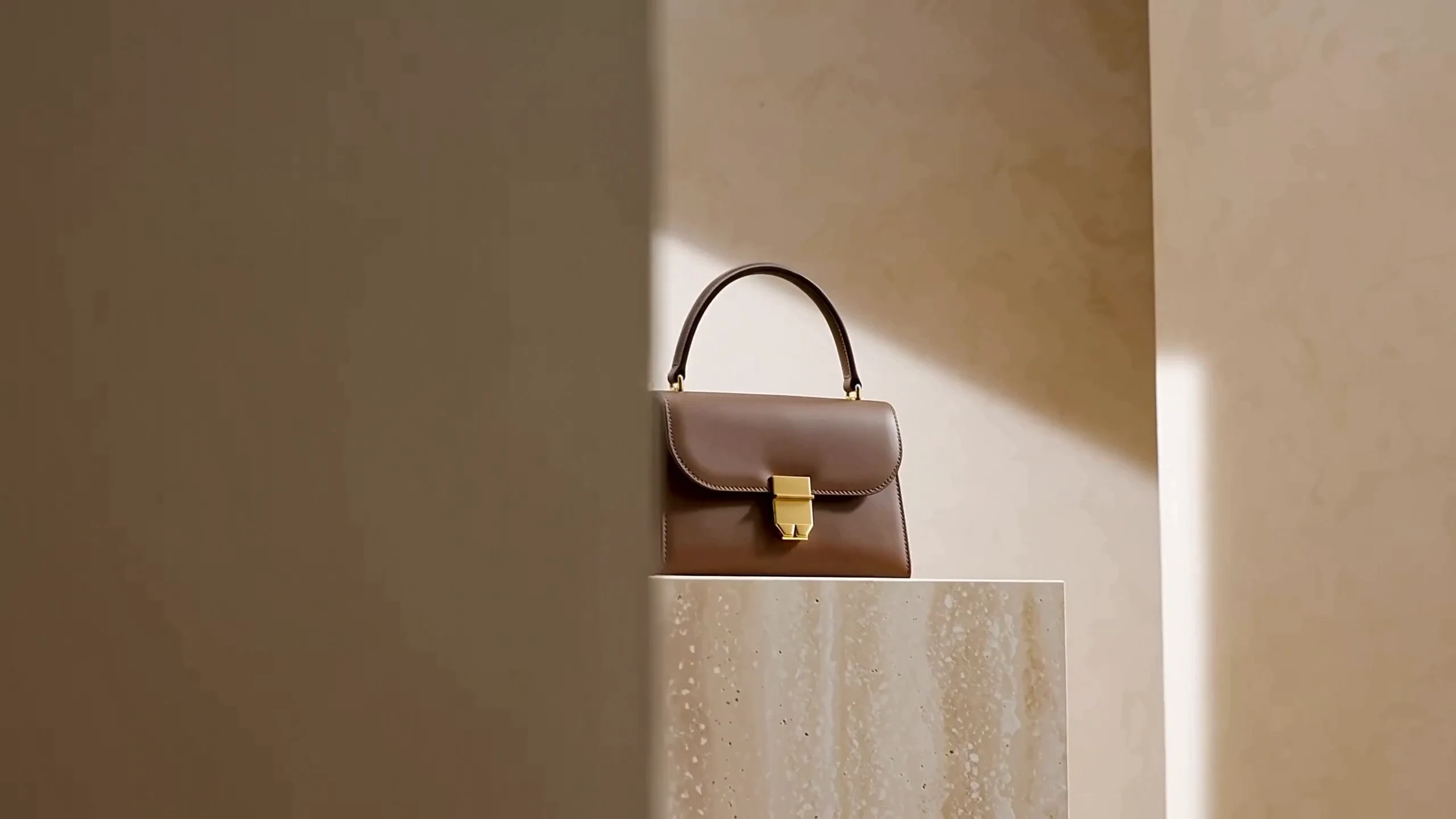
“”
Direct a Cinematic Scene from Words
Describe the subject, setting, action, camera movement, and sound. Generate a complete short scene with MiniMax H3, without preparing an image or a full storyboard.
Choose 5–15 seconds per clip, with 768p or 2K output.
MiniMax H3 Image to Video
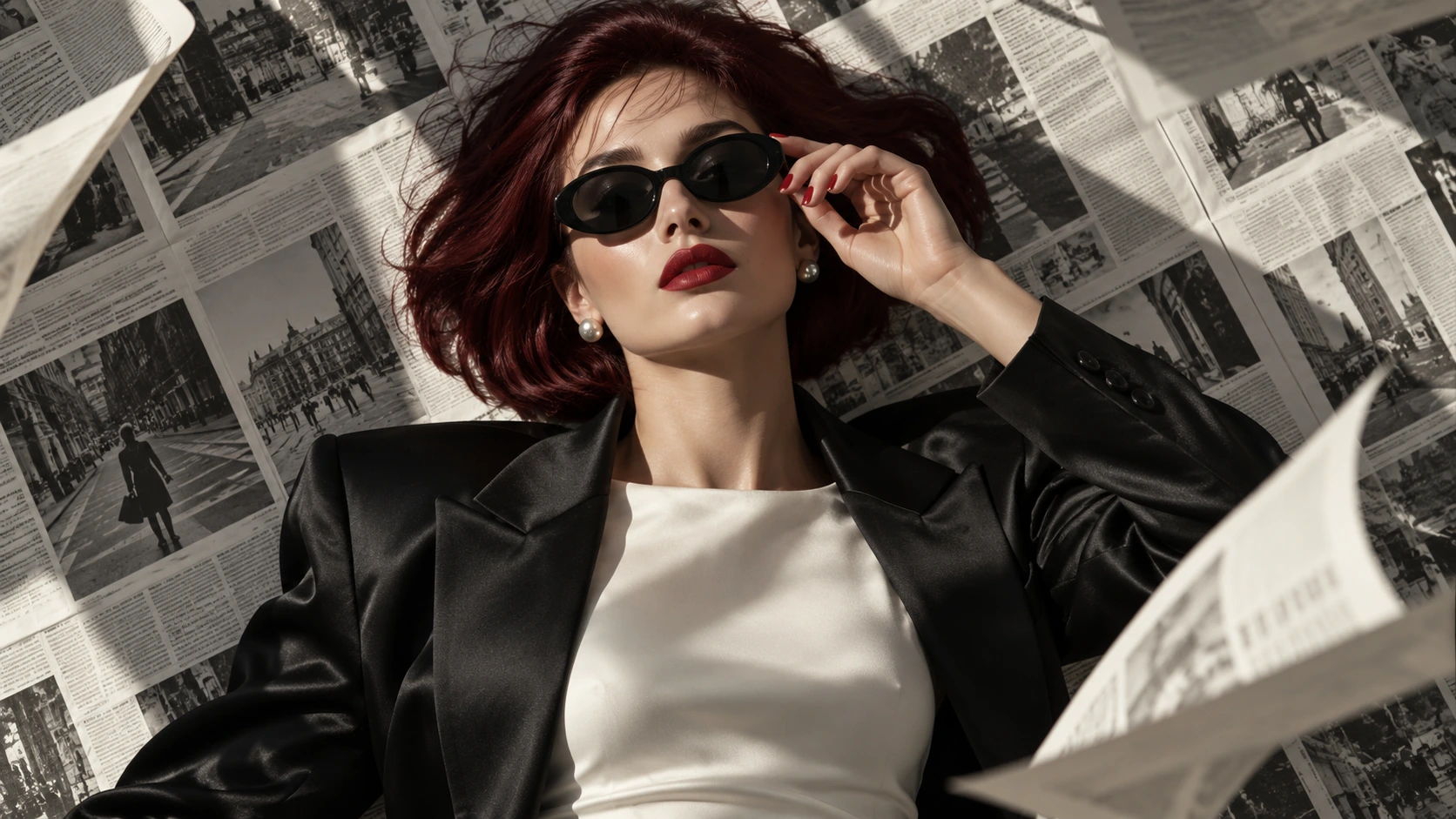
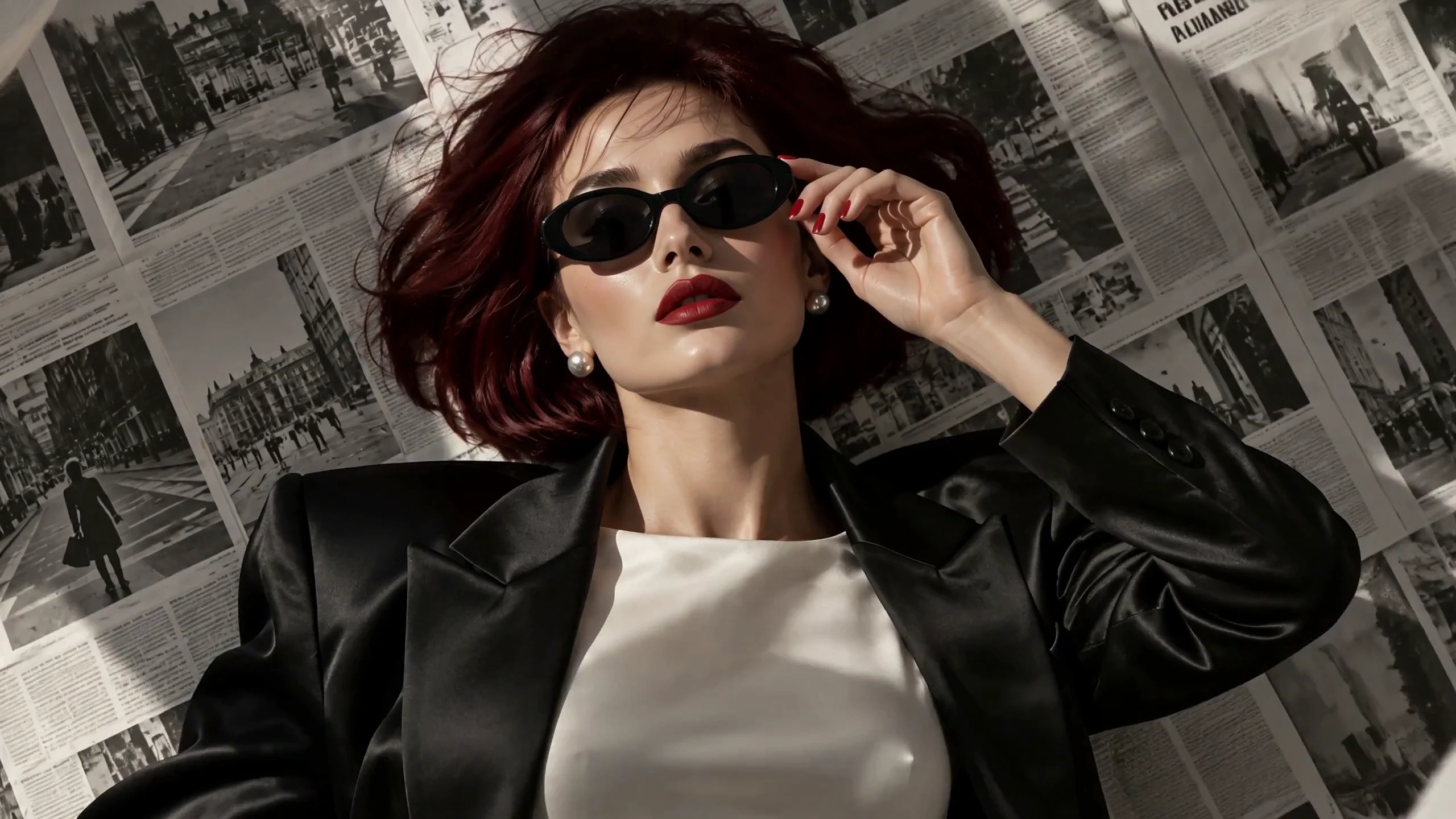
Turn a Still Image into a Cinematic Sequence
Start with an image to establish your subject and styling. Direct movement, close-ups, camera changes, and sound with MiniMax H3—from a single fashion portrait to a complete beauty editorial.
Generate a 5–15-second clip, with 768p or 2K output. Longer films combine multiple generated shots.
How to Create a Music Video with MiniMax H3 on OiiOii
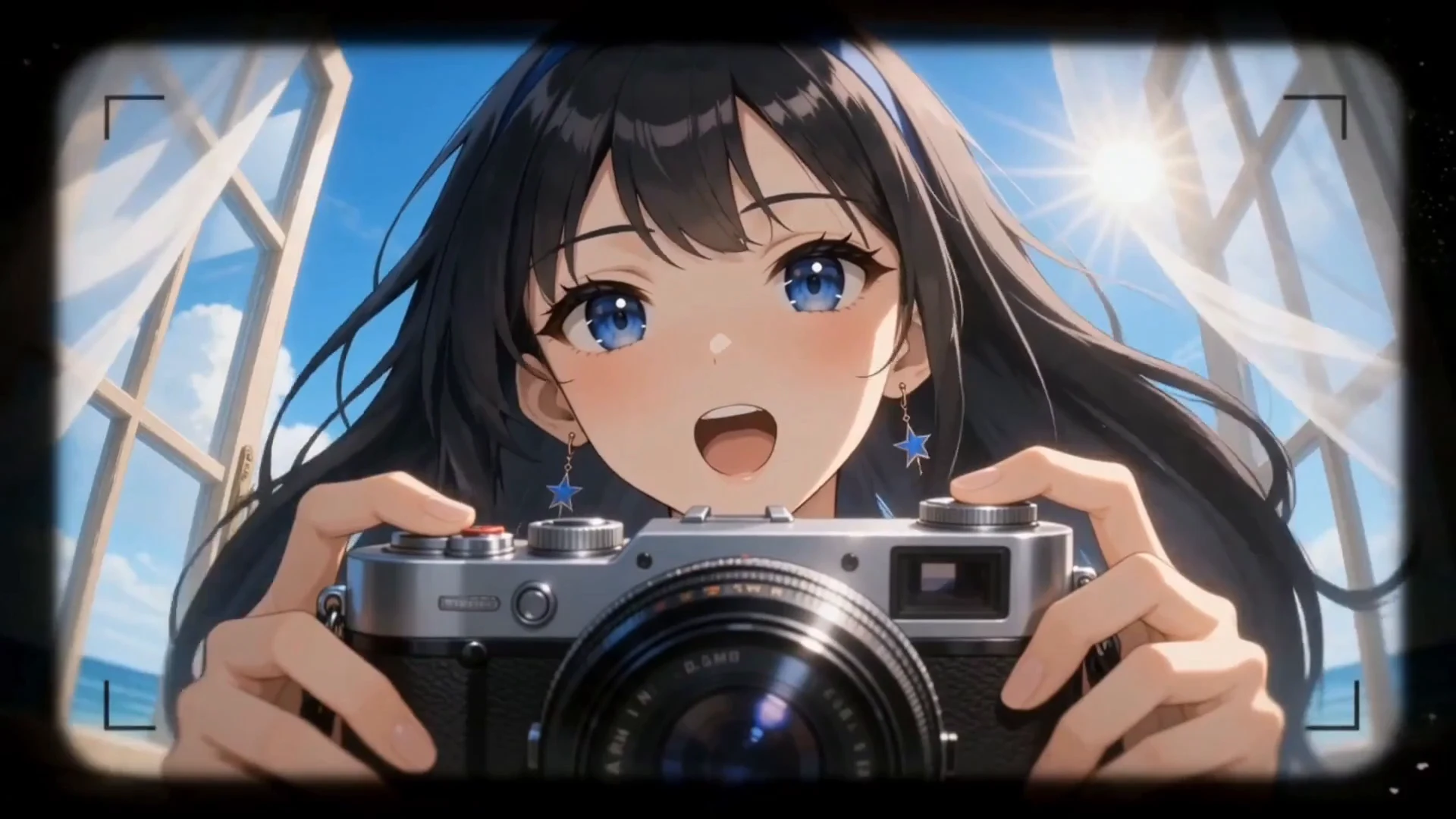
“”
From Your Song to a Finished Music Video
OiiOii analyzes your song and develops the creative plan. Use H3 for the video shots, then bring them together into a music video.
- Bring Your Music. Upload a song, import a music link, or generate music from lyrics. Choose Story Music Video, Visual Effects Music Video, or Dynamic Performance Music Video.
- Review the Direction. Review the plan developed from your song. Adjust the style, references, and storyboard. Character and scene artwork is created with image models.
- Generate and Assemble. Choose MiniMax H3 when video generation begins; you do not need to select it again for each shot. Review the clips, adjust their order or length, and export the assembled music video.
Longer music videos use multiple generated shots assembled in OiiOii; each H3 generation is 5–15 seconds.
How to Create an Animated Story with MiniMax H3 on OiiOii
“”
Build a Connected Story with OiiOii’s Agents
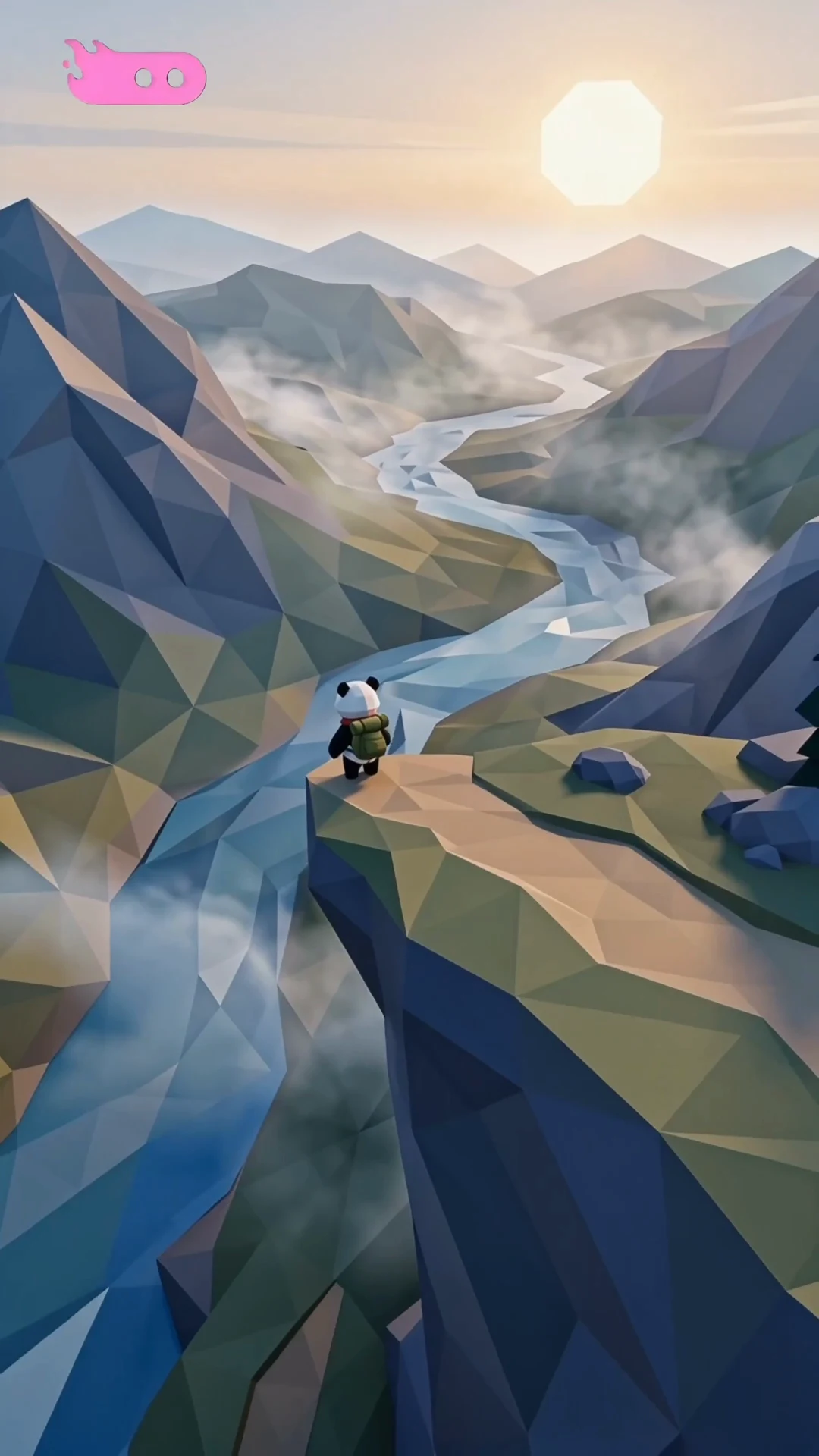
Start with a sentence or a full script. OiiOii’s agents develop the story with you, while H3 generates the video shots.
- Share Your Story. Describe your idea or provide a script. Let OiiOii develop the script and storyboard.
- Approve the Characters and Scenes. Use OiiOii’s image models to create character and scene artwork. Review each completed stage; ask the agent for changes or make manual edits before continuing.
- Animate and Finish. Generate the video shots with MiniMax H3, using the prepared artwork as references. OiiOii assembles the story; review continuity and reorder or trim clips in Canvas.
Each H3 generation is 5–15 seconds. Longer animated stories combine multiple generated shots in OiiOii.
MiniMax H3 FAQ
① What is MiniMax H3?
H3 is a multimodal video generation model from MiniMax that creates video with native stereo audio. On OiiOii, you can use it for individual scenes and as the video model in larger creative projects.
② What is MiniMax H3 used for on OiiOii?
Use H3 to generate video shots for music videos, animated stories, character scenes, and product films. OiiOii’s agents coordinate the project; image models create character and scene artwork, while H3 turns text or image references into video.
③ How long can MiniMax H3 videos be, and what resolutions are available?
On OiiOii, each H3 clip can be 5–15 seconds long, with 768p or 2K output. You can select 15 seconds and 2K together. Longer music videos and animated stories combine multiple generated shots.
④ Does MiniMax H3 generate sound with video?
Yes. H3 generates video and stereo audio together. Describe dialogue, ambience, music, or sound effects alongside the visual action. For a music video, start with the song in the MV workflow.
⑤ How do I make a music video with MiniMax H3?
Enter the MV workflow and upload, link, or generate a song. Choose a mode, style, or reference, then review the plan OiiOii creates from the music. Select MiniMax H3 when video generation starts; you do not need to select it again for every shot. Review, edit, and export the resulting project.
⑥ Can I turn a script into an animated story?
Yes. OiiOii develops the script and storyboard, uses image models for character and scene artwork, and uses your selected video model for the video shots. It then assembles the story. Confirm or revise each completed stage before continuing, through the agent or manual edits.
⑦ Is MiniMax H3 free on OiiOii?
Generating videos on OiiOii uses Credits. Review the displayed cost before submitting a task. Open model weights do not mean free hosted generation.
⑧ What is MiniMax H3 pricing on OiiOii?
Video generation uses Credits. As a reference, a single 15-second 2K clip is shown at 165 Credits on OiiOii. Your task total depends on the selected settings and is shown before generation. OiiOii Credits and MiniMax API pricing are separate.
⑨ Is MiniMax H3 open source?
MiniMax publishes H3 open weights under its license. These can be used separately from hosted generation; using H3 on OiiOii does not require downloading or running the weights.
⑩ Do I need a MiniMax H3 API key to use OiiOii?
No. Select H3 inside OiiOii to create your videos. You do not need your own API key or a local model setup. MiniMax also provides an API for developers who want to build their own integration.
Explore More Ways to Create
Create Your Next MiniMax H3 Video
Bring a scene, a song, or a story. Build it with OiiOii.